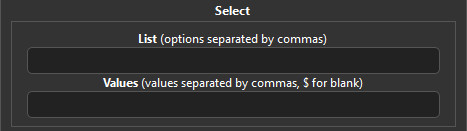
List (options separated by commas)
Values (values separated by commas, $ for blank)
Combo
Combo (options separated by commas)
ParentDefaultLink to struct
Code Editor
New Script
Name:
Description:
Quickscript
Window Name:
Scene Name:
Prototype:
Script list
Core Code Editor
New File
Are you sure you want to start a new file? Unsaved changes will be lost!
How-To Guide
Creating a new file
To create a new file, simply type in what you want the filename to be at the bottom of the file selector, and click the "New File" button.
Plugin Settings
In the plugin settings you'll find where you can edit the plugins name, description, author, and help section. What ever you choose your plugins name to be, that'll
be the name of the .js file.
Creating Params
There are multiple types of parameters to choose from. Paramters are items that the plugin user can modify. For example, if you choose the File parameter, the plugin user will
be able to select a file from either the img or audio directory, or a specified directory. If you want the param to have a value before the plugin user sets it, you can
set its default value.
Param Types
Text
Text params are strings which the plugin user can define.
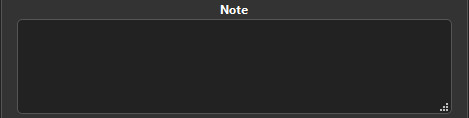
Note
Notes are like text params, only they can contain multiple lines of text instead of just one.
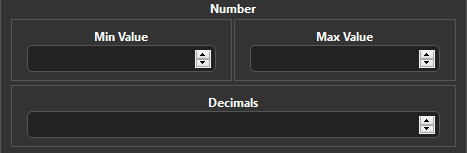
Number
Number params are params that allow the plugin user to select a number. You can define how many decmials the number can have, as well as define
the minimum and maximum number allowed.
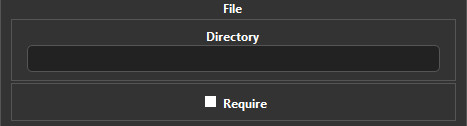
File
As described above, a File param allows the user to select a file for use. This can be either an image, audio, or other. Check the Require checkbox
to make sure the file they select gets exported when the option 'Exclude Unused Content' is checked.
Database
The database param lets you select something from the database, like actors, classes, animations, even switches and variables. Like the file param, this one
has a require option too. LIST:
Animation
Actor
Class
Skill
Item
Weapon
Armor
Enemy
Troop
State
Tileset
Common Event
Switch
Variable
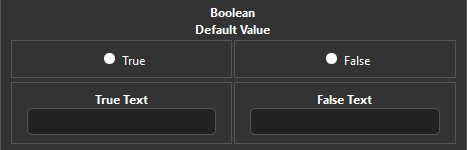
Boolean
Booleans are a type of variable that only have an on and off value (true or false). You can define what the true and false text says as well as define its default value.
Select
Select params are params that have a dropdown list. Each option is separated by a comma, so for example if you type , you'll
get this:
Each option can have its own value (not visible to the user) that the plugin can make use of. These values are defined in the same way!
Use $ to skip setting a value for that id. For example
Combo
Combos are like Select, only they don't contain a hidden value.
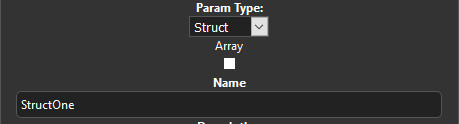
Struct
Structs are a type of param that can contain other params. These are usually used if you want to have a param like, lets say "Person" and within that param,
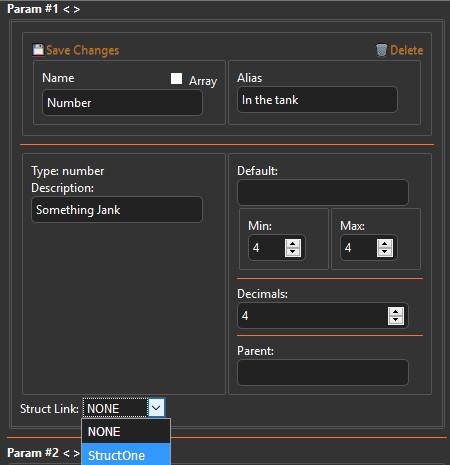
you want to define "Age", "Sex", "Name", etc. You can link a param to a struct by checking the select box under it, or by selecting it from the bottom of the
create param section. You need to create a struct in order for one to show up. Also, struct names cannot contain stuff like _ for some reason, otherwise
MV wont read them.
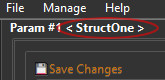
You'll know if the struct has been set once you click "💾Save Changes" when you see the param # contain the structs name.
Scripting & Functions
The code editor lets you organize the way you code by separating scripts. You can have scripts that create plugin commands, create a window, a scene, anything.
This guide wont have any information on scripting an MV Plugin, as that'd fill up this entire page and there are already plenty of amazing tutorials on YouTube
for that.
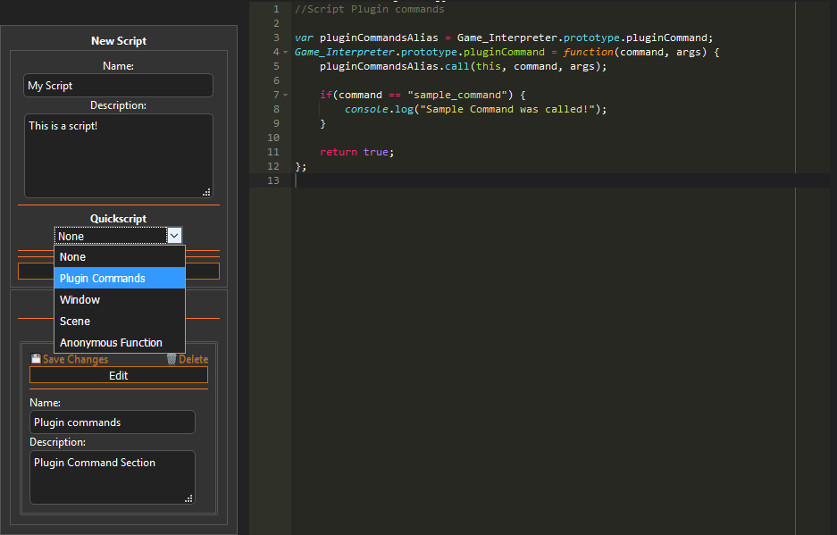
Quickscripts
Quickscripts are for quickly preparing scripts. You can quickly create a window, scene, anonymous function or anything else that might show up in future updates.
List:
Plugin Commands
This quickly creates a plugin command section.
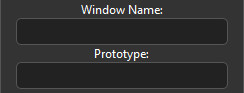
Window
The window quickscript allows you to quickly create a window and define its prototype.
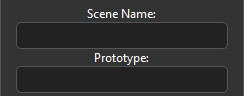
Scene
The scene quickscript allows you to quickly create a scene and define its prototype.
Anonymous Function
Anonymous functions are functions where the content inside of them cannot easily (as far as I know), be edited by an outside source.
Built-in Functions
List:
param('param_name');
Returns the value of a parameter.
alias
alias.create('alias_name', function);
Creates an alias of a function. (e.g alias.create('title.create', Scene_Title.prototype.create;).
alias.get('alias_name')
Returns the function of an alias. (e.g alias.get('title.create').apply(this, arguments);)
Alternatively you can edit the Core Code, which contains said default functions.
---